Why Captive Portal Fails When Adding AX3000 Access Point?
Why Captive Portal Fails When Adding AX3000 Access Point?
We recently received an interesting case from a customer using our Mosslink AX3000 outdoor access point in a hotspot network powered by MikroTik. The issue was subtle but frustrating: the captive portal failed to appear on most phones as soon as the AX3000 was added to the network. But once the AP was removed, the portal immediately came back — visible on every phone without fail.
This wasn’t just a simple device error. It’s actually a common issue in hotspot setups that use MikroTik routers or CAPsMAN with access points in AP mode. Here’s what we learned — and how to fix it.
What Was the Customer Setup?
From the screenshots and explanation, the setup looked like this:
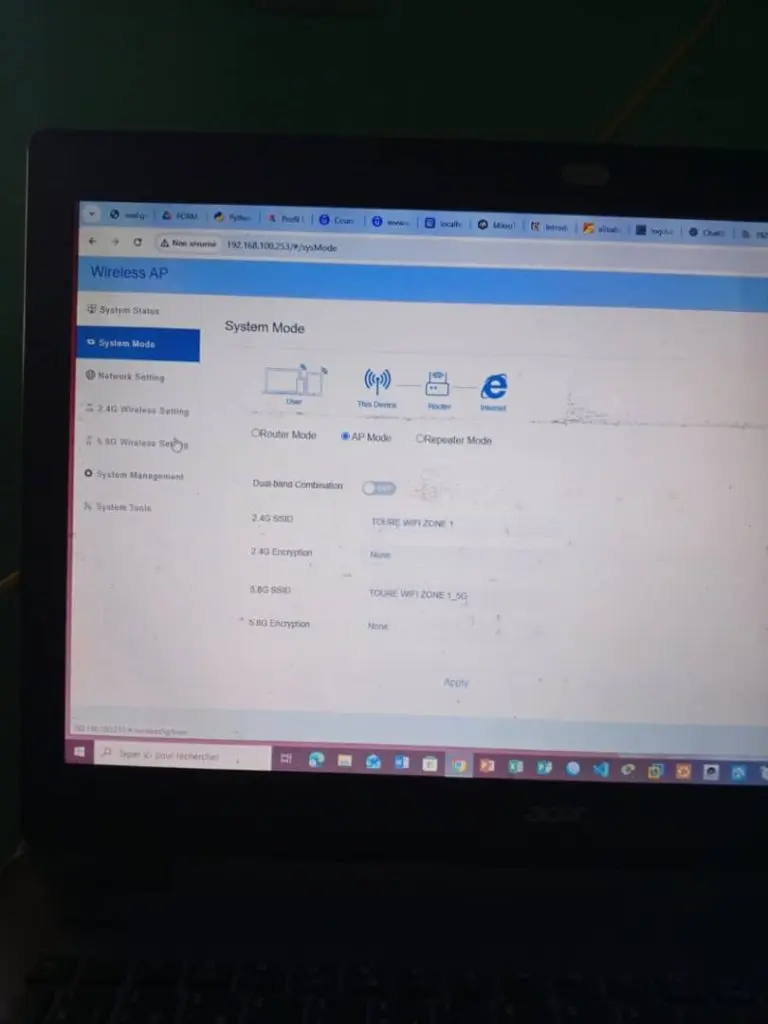
- The customer connected the AX3000 via LAN cable to a MikroTik router running a captive portal.
- The AX3000 was set to AP Mode, with Static IP, and DHCP disabled.
- DNS was set to
8.8.8.8and1.1.1.1. - SSID broadcast was fine, users could connect, but the portal did not appear automatically.
What Was the Symptom?
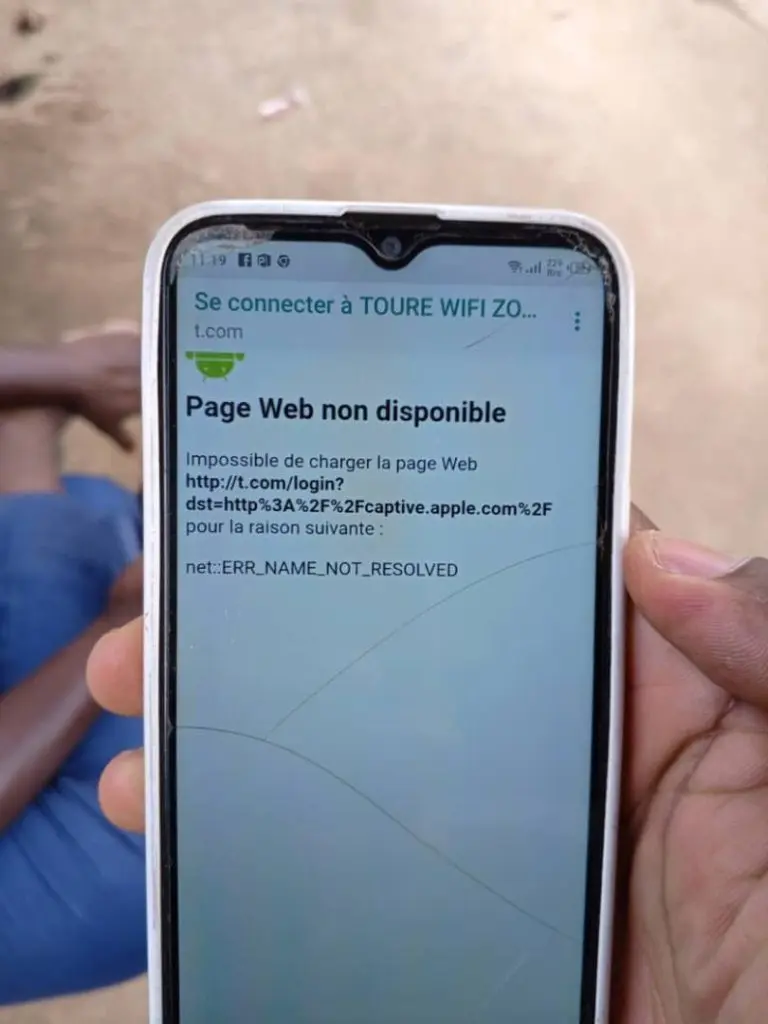
Phones could connect to WiFi, but did not trigger the captive portal redirect. Instead, users saw this error:
Page Web non disponible net::ERR_NAME_NOT_RESOLVED
Some devices might eventually load the login page by entering the URL manually. But most phones — especially iPhones and Android 13+ — failed to show the portal at all.
Why Did This Happen?
The problem is related to how captive portals rely on DNS hijacking to intercept traffic. MikroTik’s Hotspot feature expects to receive DNS requests and HTTP probes from connected clients. But if:
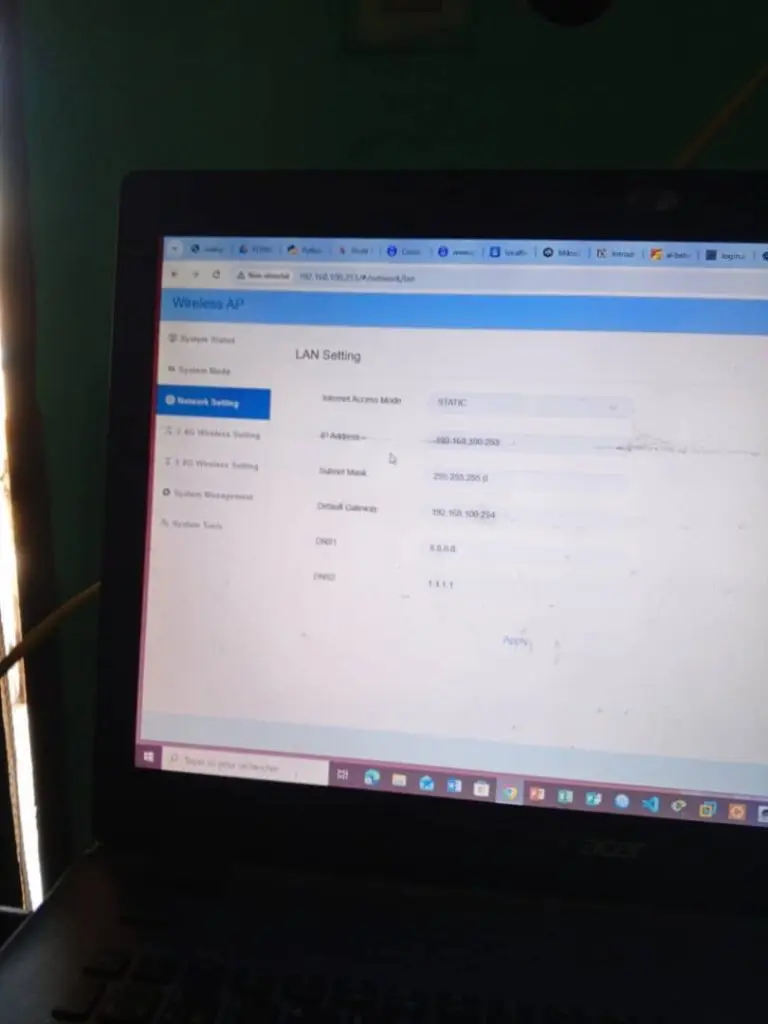
- The access point is using public DNS (like 8.8.8.8),
- Or the DNS server is outside the MikroTik hotspot range,
- Or the AP performs its own NAT/routing (even in static IP mode),
Then those DNS queries bypass the MikroTik DNS cache, and the router can’t redirect the request to the captive portal page. So the login page fails to appear.
How We Fixed It
In this case, we helped the customer fix the issue by adjusting three key settings:
- Change DNS on AX3000 to MikroTik’s internal IP
For example, if the MikroTik hotspot LAN IP is192.168.100.1, then set:
DNS1: 192.168.100.1
DNS2: 0.0.0.0 - Keep the AP in Static IP mode but assign IP in the same range (e.g.
192.168.100.253), with the gateway set to MikroTik IP. - Disable any NAT or advanced routing on the AP. Just let it act as a transparent bridge.
Once these settings were saved and the AP rebooted, captive portal redirection started working correctly on all devices — including iPhones.
Key Takeaways for Hotspot Networks
If you’re setting up a WiFi hotspot using MikroTik and adding custom access points like Mosslink AX3000, keep these principles in mind:
- Make sure all DNS requests pass through the MikroTik device.
- Never use public DNS (8.8.8.8, 1.1.1.1) in the AP settings in hotspot environments.
- Set the AP to static IP in the correct LAN range and assign MikroTik as the gateway and DNS.
- Don’t enable routing, NAT, or firewall rules on the AP — let MikroTik handle everything.
We’ve seen this same pattern in multiple customer setups, especially in hotspot deployments across Africa. Sharing this real-world case may help others who face the same silent problem.
If you’re unsure how to set up your access point in a MikroTik hotspot, feel free to contact our support team or check out our upcoming AP hotspot deployment guide.
Share